6 ways to extend iPhone battery life without closing apps
Battery life on an iPhone sometimes doesn't even last a single day. However, Apple offers many settings and options specifically for the iOS operating system. Here are 6 tips to extend battery life without closing apps.
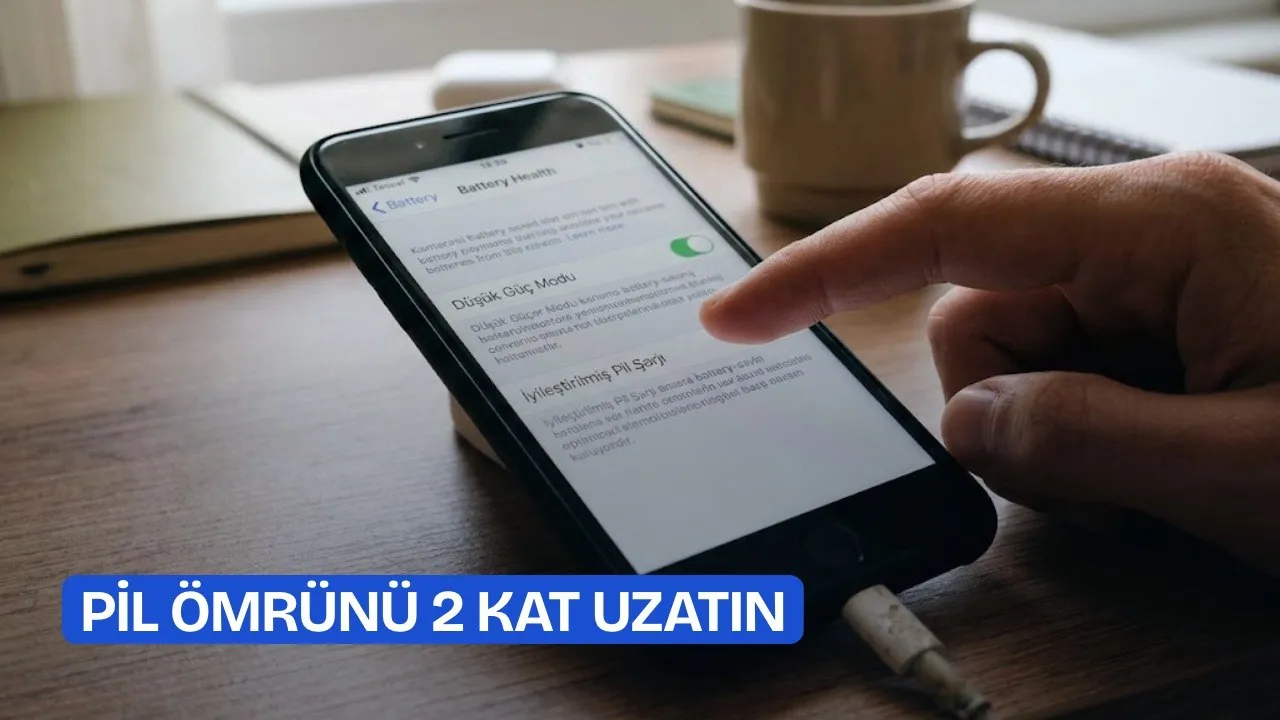
Even if we own the most expensive smartphone, charging issues are sometimes inevitable. Nowadays, even the latest iPhone either barely lasts a day under heavy usage or runs out of battery right on the morning of the second day. However, there are many ways to reduce battery consumption, and if you apply them, you can see a significant improvement.
Closing apps seems to be one of the most common ways to extend battery life. However, according to a report by tech outlet Engadget, this is not always true. Instead of closing apps to increase battery life, changing the phone's settings can be more effective. Apple also offers a series of features for battery management.
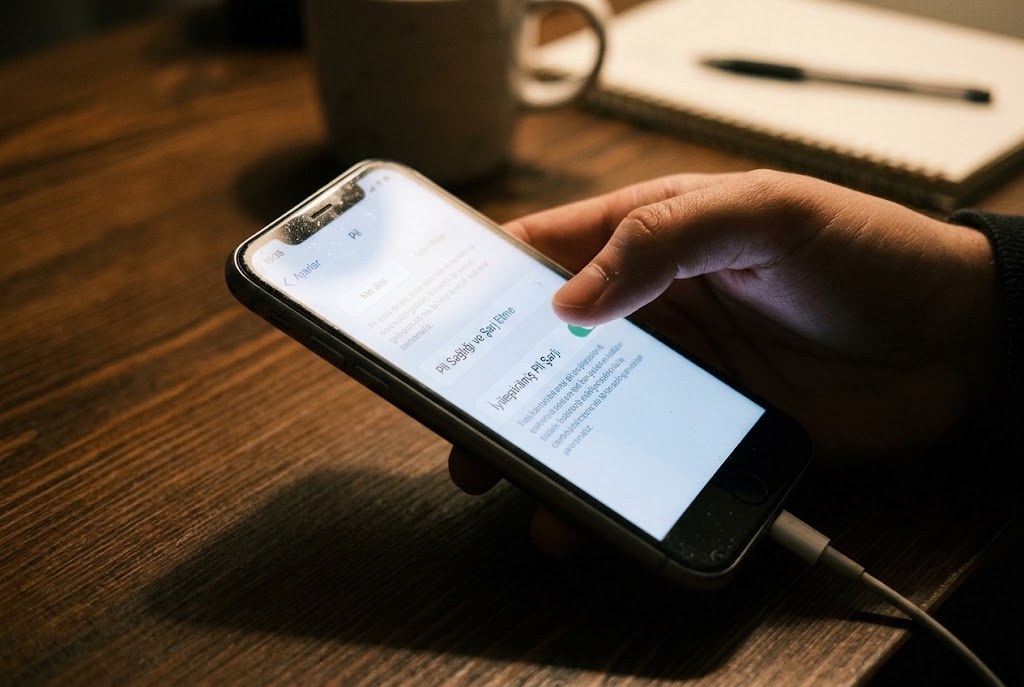
As you know, all batteries degrade over time. Your usage habits are one of the factors that directly affect how long the battery will last. Therefore, reviewing your settings can be the first step in preserving battery longevity.

Background apps and location settings
Background apps may not always be the main cause of battery consumption. Still, it is possible to limit the power these apps draw. When the "Background App Refresh" setting is enabled, apps can fetch data from the internet and update themselves even when suspended. Turning off this setting stops these processes and saves power.
In addition, you can grant location services access only while using the app through each app's settings.
Starting with display settings
Apple recommends two options as a first step to extend battery life. The first is manually adjusting the brightness to the lowest level or enabling Auto-Brightness to let the phone manage it on its own.
To avoid constantly tweaking the settings when lighting conditions change, trying Auto-Brightness first might be better. The second is using Wi-Fi instead of mobile data. Connecting to a cellular network consumes more power than connecting to Wi-Fi.
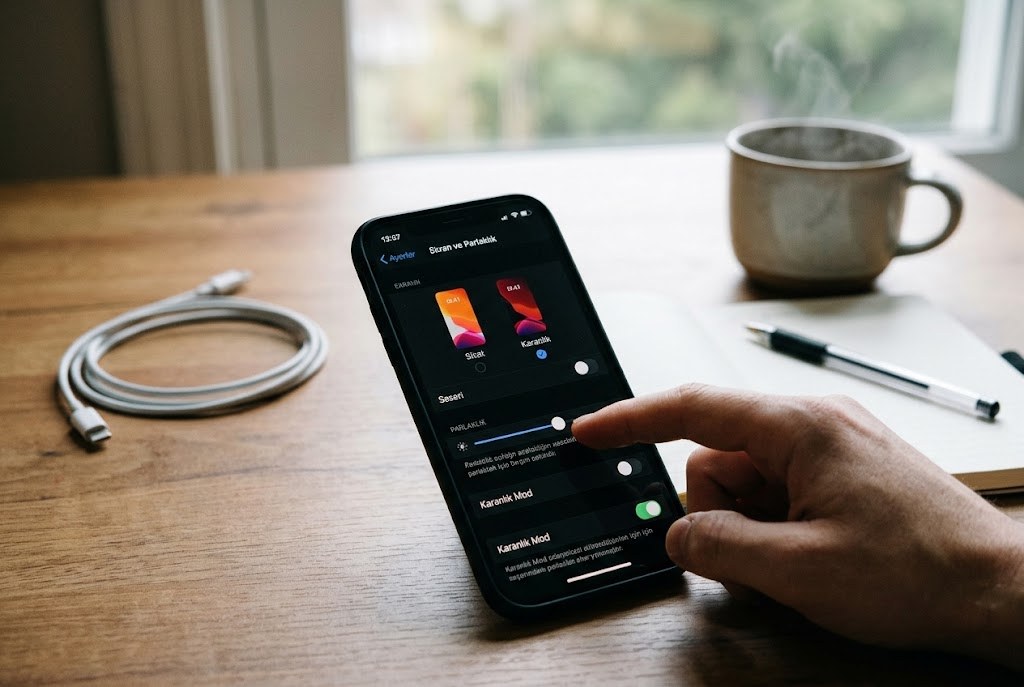
Apart from brightness, there are a few other display settings you can change to extend battery life. Turning off the "Always-On Display" feature can be a good start; although it is a nice feature, it puts a constant strain on the battery.
If your phone has an OLED screen, turning on Dark Mode can also save power, because OLED turns off screen sections containing black pixels. Enabling the "Limit Frame Rate" option sets the display to a 60 Hz refresh rate instead of ProMotion's 120 Hz. This halves the number of times the screen refreshes in a day. However, for most users, the savings may not be noticeable, and if you are used to 120 Hz, this change can be jarring.
Extending battery life with power settings
In addition to the methods above, there are also some settings on your iPhone that directly change charging and power consumption. When "Adaptive Power" is turned on, the phone analyzes your usage habits. When not needed, it reduces battery consumption by lowering many settings, from screen brightness to background data.
"Low Power Mode," on the other hand, forcefully applies similar changes. However, it can affect the phone's performance more significantly, so it is best to use it only when you really need it. When Adaptive Power is turned on, Low Power Mode automatically kicks in when the battery drops to 20 percent.
Improving charging habits
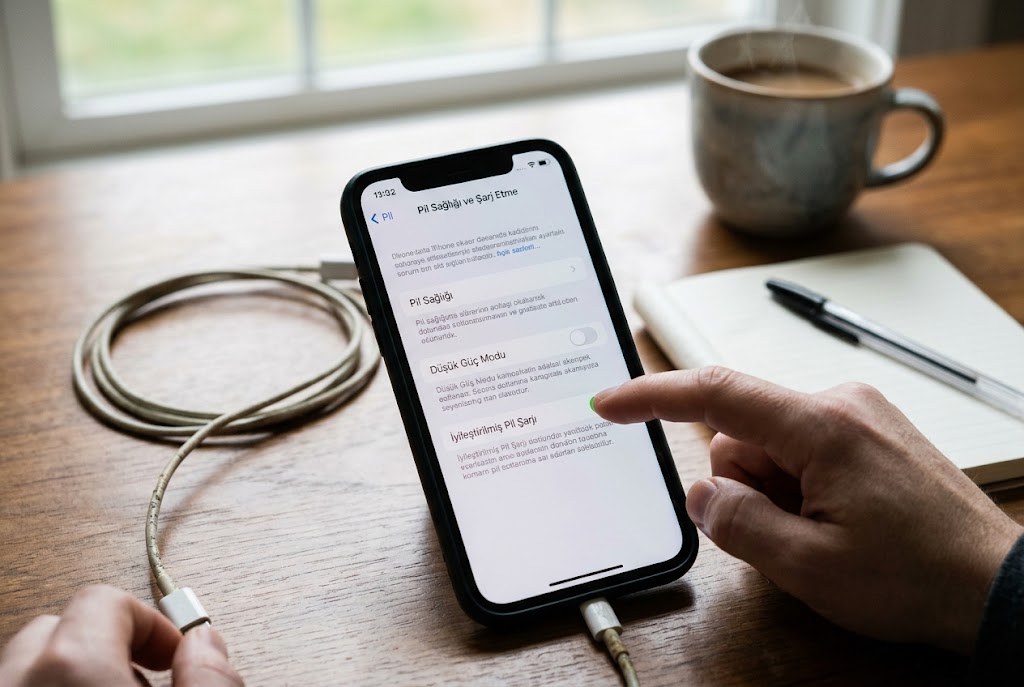
Over time, the battery's capacity to charge efficiently and hold a charge for a long time decreases. While this is inevitable, turning on the "Optimized Battery Charging" feature can prevent some of this wear and tear. This feature stops charging at 80 percent until you really need it. Even better, you can set a charge limit yourself so that the battery never fills up to 100 percent. A full charge can shorten the battery's lifespan over time.
In general, trying to keep the battery level between 20 percent and 80 percent instead of letting it drain completely or fill up completely can significantly extend battery life. This is a valid method even before applying the other tips above.
This article was translated from Turkish. Read the original article in Turkish.