3 Settings in Google Maps That Reduce Battery Consumption
It's used on millions of phones, but it sometimes consumes very significant battery. With a few simple settings in Google Maps, you can save on battery life.
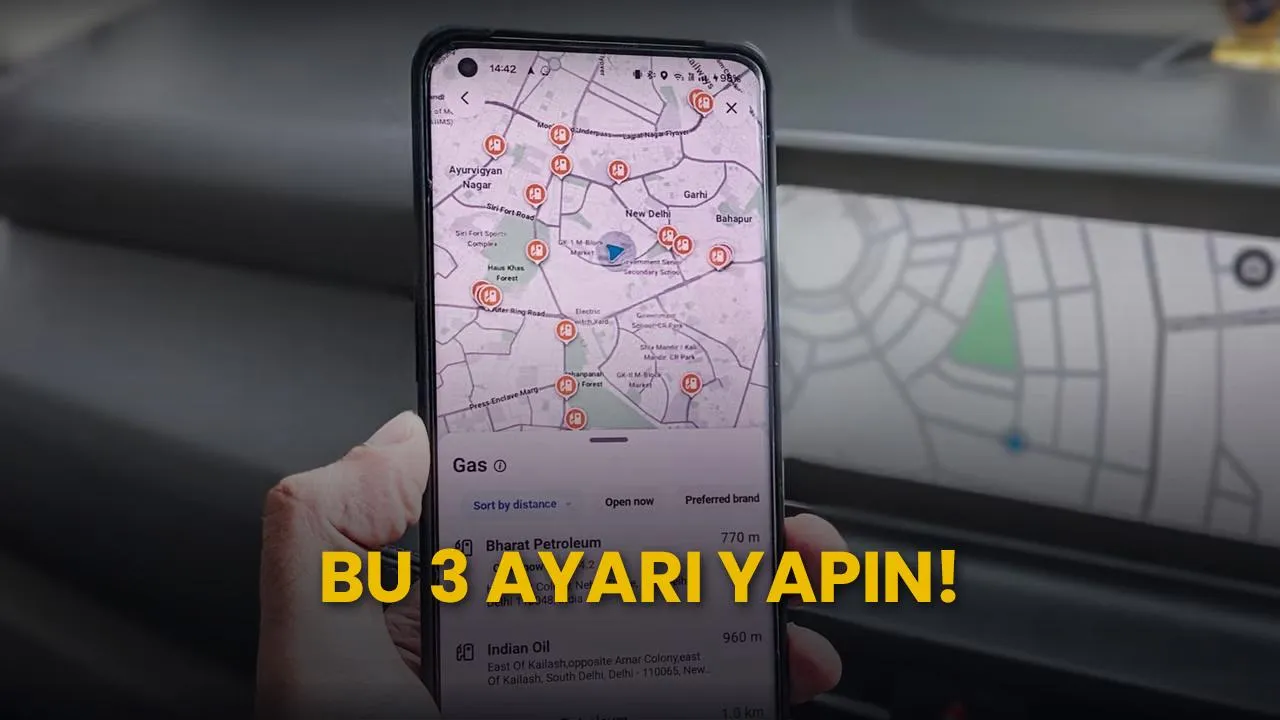
Google Maps, the popular mapping app used around the world, has become even more useful with its latest features. However, some users complain that the app drains the battery too much. Fortunately, it's possible to reduce Google Maps' battery consumption in a few steps.
Google Maps can quickly drain phone battery during long car trips. Kazim Alvi of XDA Developers shared three settings, based on his own experience, that reduce this issue.
Alvi states that during long drives when he doesn't charge his phone, he arrives at his destination with the battery almost dead. He says the settings he tried to solve this problem don't disrupt the app experience, and even provide a smoother experience.
Navigation tracking from the lock screen is possible
The first feature mentioned in the article is known as "Glanceable Directions While Navigating" and has been available for some time. When this feature is enabled, live route tracking can be done from the phone's lock screen instead of keeping the app open in full screen.
Information such as the next turn, estimated arrival time, and remaining distance is displayed on the lock screen. According to Alvi, while this doesn't offer the same experience as full-screen navigation, it's enough for those who only need turn-by-turn instructions; keeping the screen off most of the time also noticeably reduces battery consumption.
Offline map download option
According to the author, another often-overlooked feature is offline maps. Google Maps allows users to download map and navigation data for a region in advance, so the app can provide directions from local data.
This way, the app becomes less dependent on mobile data, reducing battery consumption. Alvi notes that he often passes through areas without network coverage, and offline data makes things easier in those situations. However, there are two important warnings:
- Choosing a wider area to download than the planned route provides flexibility in case of deviating from the route.
- Mobile data should be left on; otherwise, Google Maps cannot provide live traffic information.
Which phones have the power saving mode?
Another lesser-known feature of Google Maps is a dedicated power saving mode. When this mode is enabled, the app removes visual elements not necessary for navigation, such as 3D buildings and street labels, showing only essential information with a simple, black-and-white interface.
The article notes that this feature is "exclusive to a handful of Pixel phones." To enable it, go to Settings > Navigation > Driving options in Google Maps and turn on Power saving mode. This mode can also be activated during navigation by pressing the power button once.
How does this affect you?
For users who drive long distances and don't charge their phone in the car, these three settings can significantly extend battery life. Alvi notes that low-power USB ports in cars sometimes fail to charge the phone adequately, and the battery level can even drop while connected. He states that after enabling these settings, his phone's battery lasts several hours longer.
This article was translated from Turkish. Read the original article in Turkish.