Contents
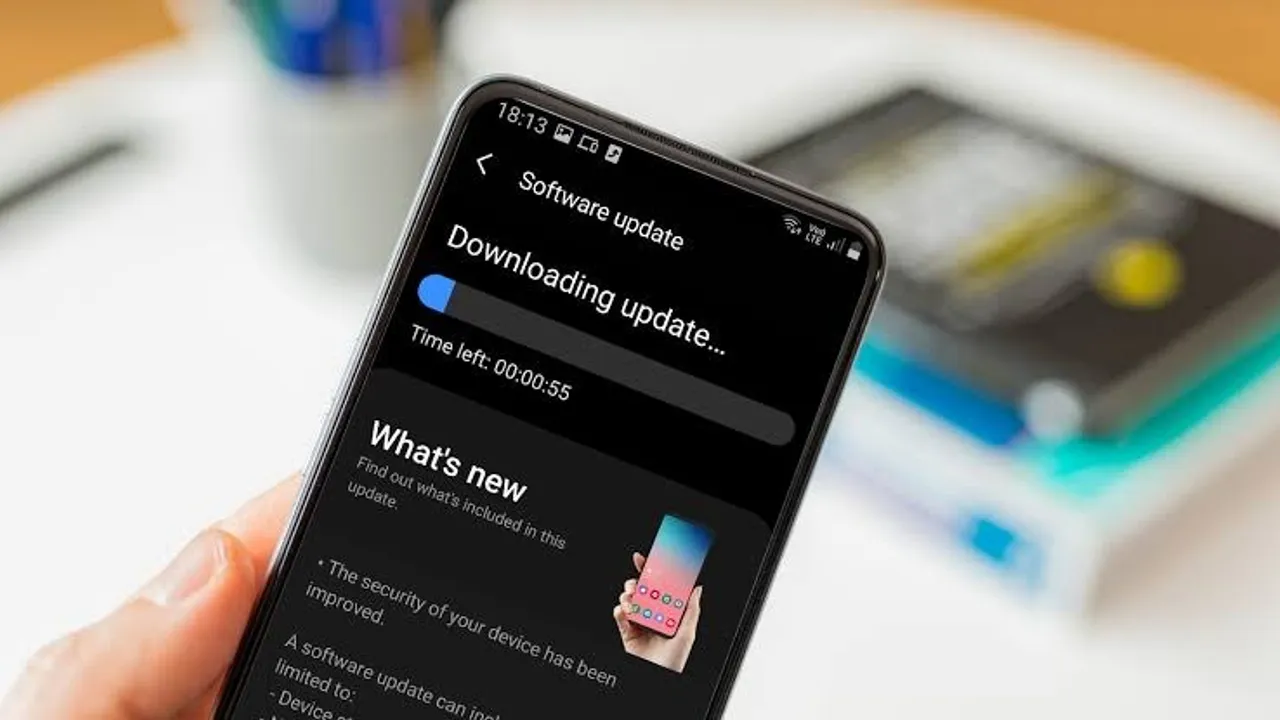
The Android update is done from the Software updates screen under System in the Settings app, and it takes three steps. Google recommends connecting to Wi-Fi and charging your device to at least 75% before updating. On phones other than Pixel, the menu name may be slightly different.
Starting the update from Settings
If you dismissed the notification, or it arrived while your device was offline, you can check for the update manually. According to Google, updates can be large and take some time, so first connect to Wi-Fi and charge the battery to at least 75%.
- Open the Settings app on your device.
- Tap System, then Software updates. The update status appears on this screen.
- Follow the instructions shown on the screen.
Google's tip notes that on some devices the menu may also be labeled "Software update."
Checking which version you're on
- Open the Settings app.
- Tap About phone or About tablet, then Android version.
- Find the Android version, Android security update, Google Play system update and build number.
If the download stalls
If the update starts downloading but doesn't finish, the device will retry on its own over the next few days. When it retries, you'll get a notification; open it and tap the update button.
If a security update doesn't appear, first make sure you're on the latest Android version available for your device, since the latest security update for your device depends on it.
Restarting after installation
- Pixel phones and Pixel Tablet: Downloaded updates install in the background and take effect when you restart the device.
- Other Android devices: Many phones and tablets restart on their own during installation; the update takes effect once installation is complete.
When will the update arrive?
According to Google's page, the update schedule varies by device, manufacturer and mobile carrier. For devices other than Pixel, you need to contact the manufacturer or carrier for the schedule.
What else are you stuck on? Share the problems you're wondering about in the comments.
Source
This guide was prepared with AI assistance; it was reviewed and updated by the TechTurco news desk.