Contents
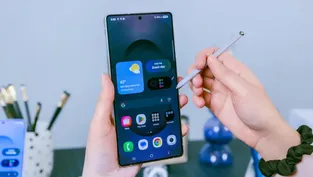
A Samsung Galaxy phone or tablet can be updated over Wi-Fi or mobile data from the Software update menu in Settings; three steps are enough. It can also be done on a computer with Smart Switch. Before you start, make sure the battery is at least 20% charged.
- According to Samsung Support, once the device has been updated to the latest software version, you cannot go back to an earlier firmware version because of advanced security policies.
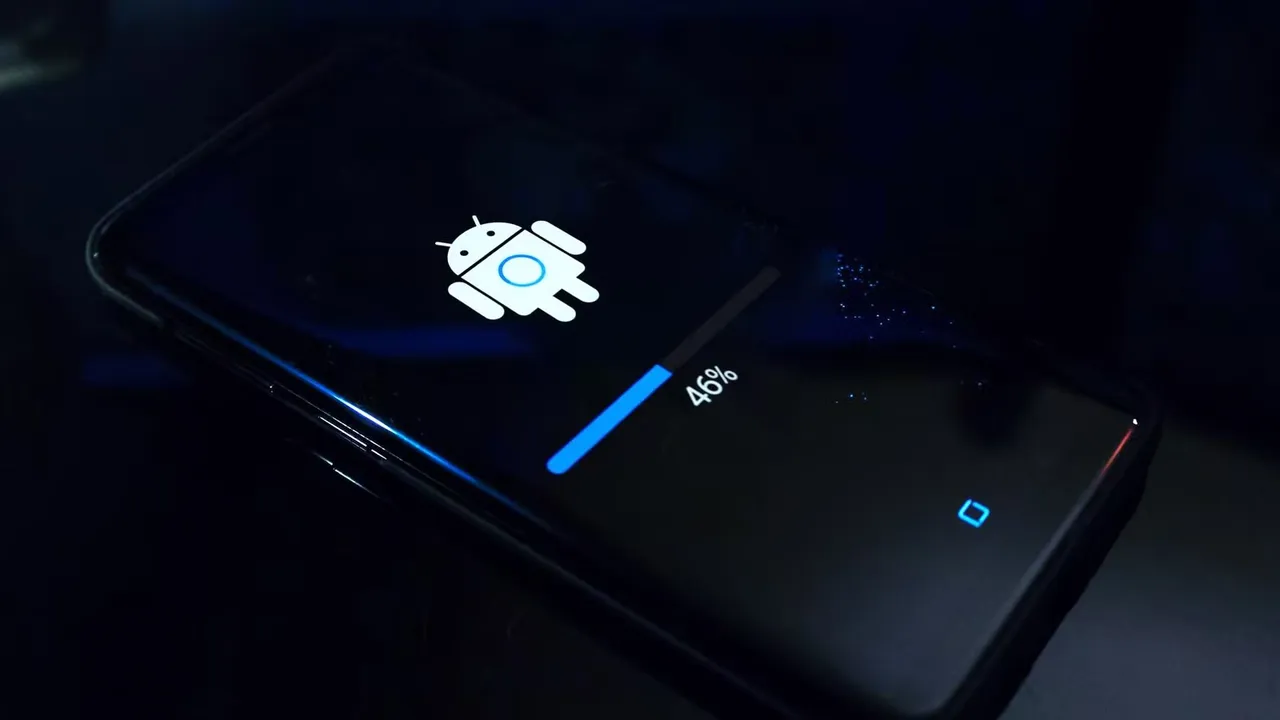
- Do not unplug the USB cable or use the device while the update is in progress.
- The device may restart several times during the update.
Menu names, settings and screen layouts may vary by model and software version. On some phones the option is called "System updates" instead of "Software update."
Updating wirelessly from the phone
- Open Settings and tap Software update.
- Tap Check for updates.
- Follow the on-screen instructions. If the software is up to date, the message "Your software is up to date." appears.
On devices running Android 5.0 (Lollipop) and later, updates may download automatically when the device connects to a mobile data network, depending on the carrier and device settings.
Updating with Smart Switch on a computer
- Open Smart Switch on your computer and connect your device to it with the USB cable included in the box. The device's USB connection setting must allow file transfer.
- If an update is available, Smart Switch suggests it automatically or shows an update option.
- Tap Update to download the required files and complete the process, then follow the on-screen instructions.
Samsung Support says Smart Switch is available for Windows computers and Mac.
Checking for a security update separately
- Open Settings and tap Security and privacy.
- Tap Updates.
- Tap Security update.
- Tap Check for updates.
- Follow the on-screen instructions. If the device is up to date, the message "Your software is up to date." appears.
By following these methods, you can update your phone. If you need another guide, you can leave the problems you run into in the comments.
Source
This guide was prepared with AI assistance; it was reviewed and updated by the TechTurco News Desk.