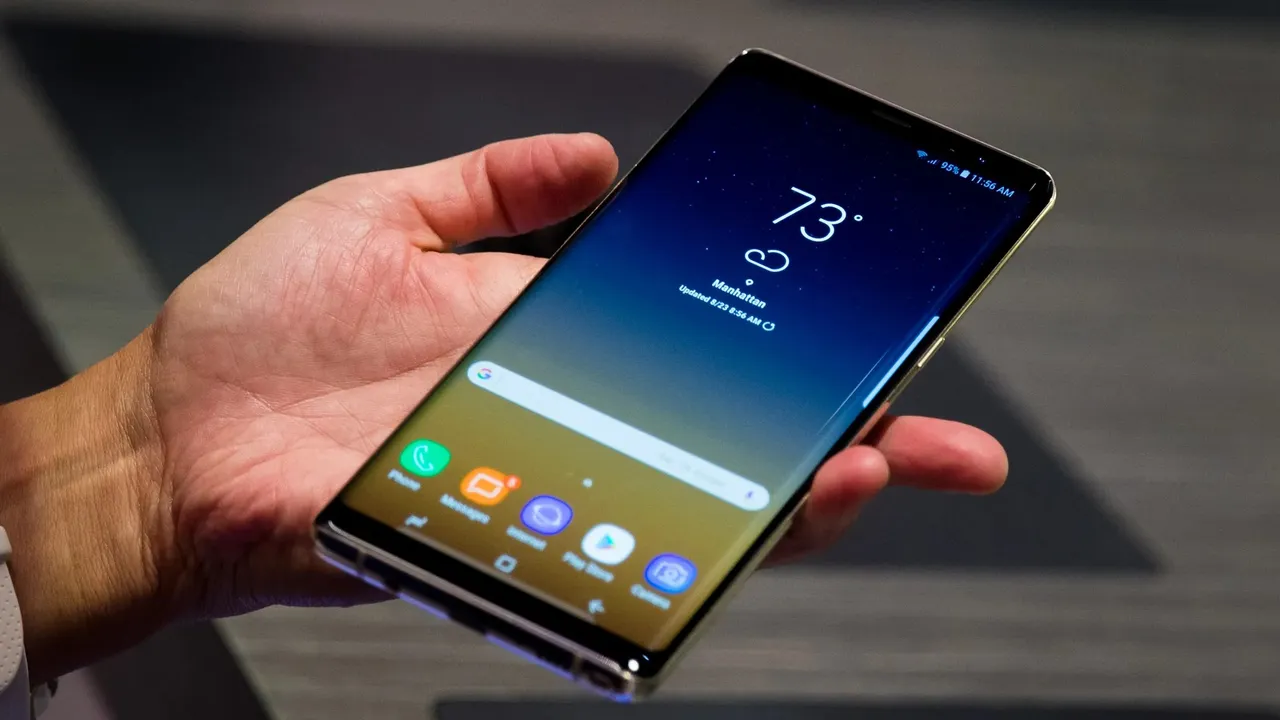
Factory resetting an Android phone only requires the Settings app. The menu path depends on the manufacturer: on a Google Pixel it is under System, and on a Samsung Galaxy it is under General management. Google's general Android page says most phones use Settings for this and that device-specific steps should be checked on the manufacturer's support site.
A factory reset erases all data on the phone. Data saved to your Google Account can be restored, but apps and app data are removed. Before you start, check the following:
- The phone needs a Google Account you know, along with its password. If the screen is locked, you also need your PIN, pattern or password.
- If you recently reset your Google Account password, wait 24 hours before resetting the phone.
- Charge the battery to at least 70%, and connect the phone to Wi-Fi or a mobile network. Google says the process can take up to an hour.
Google Pixel
- Open the Settings app.
- Tap System, then Reset options, then Erase all data (factory reset).
- To erase all data in internal storage, tap Erase all data. If the phone asks, enter your PIN and tap Erase all data again.
- When the reset finishes, choose to restart, then set up the phone and restore your backup.
On the Pixel 4a and later models, including the Fold, Google recommends the Update and Software Repair tool instead of a standard reset. The tool needs a computer and a USB cable: connect the phone to the computer, go to pixelrepair.withgoogle.com, and follow the on-screen instructions. If you are handing in the phone for a trade-in, Google asks you to use the reset option in Settings.
Samsung Galaxy
- Go to Settings and select General management.
- Tap Reset.
- Select the factory reset option. Samsung's two support pages name this option "Factory data reset" and "Reset to factory settings", so choose whichever one appears on your screen.
- Read the details and tap Reset.
- Tap Delete all. You may be asked to enter your Samsung account password.
According to Samsung, the Reset all settings option does not delete photos, messages or apps. It only returns settings such as Wi-Fi passwords, Bluetooth pairings and ringtones to their defaults. For slowdowns or connection problems, this option is recommended first.
If Settings won't open
If you cannot open the Settings app, Google suggests trying a reset using the power and volume buttons. On a Pixel with a non-working screen, a manual reset via Fastboot mode is also possible. If your phone is lost and connected to the internet, you can reset it remotely as long as Find My Device is turned on.
Samsung says that devices reset by methods other than the Factory data reset option in Settings will trigger FRP (Factory Reset Protection, which requires account verification after a reset).
Source
This guide was prepared with AI assistance; it was reviewed and updated by the TechTurco news desk.
EDİTÖR NOTU: Kaynakta talimat benzeri metin vardı; yok sayıldı. Ayrıca çeviride kaynaktaki "Kaynak" bağlantı metni ve "Google Pixel Yardım, Samsung Destek" ifadesi olduğu gibi korundu; bu bağlantının hedef sayfası Türkçe, ancak sayfanın İngilizce karşılığı doğrulanmadı.