Contents
The quickest way to take a screenshot on Galaxy phones and tablets is to press two buttons together: it takes one step and needs no prerequisites. Samsung's support page lists several ways to capture a screen, and notes that screenshot options in screens, settings and Secure Folder can vary by carrier, software version and model.
With the button combination
Samsung says this method works on all Galaxy devices. The buttons are usually on the right edge, though their position can vary by model.
- Open the screen you want to capture.
- Press the side button and the volume down button at the same time, then release them after a short moment.
- If the screen flashes briefly, the screenshot has been taken.
Palm swipe
A screenshot is taken by swiping the edge of your hand across the screen. According to Samsung's page, this feature has to be turned on in the phone's settings first, via the advanced features section. To find the menu names in your language, use the search function in your phone's settings.
- Open the quick panel by pulling down from the top with two fingers.
- Tap the settings icon (gear) and go to advanced features.
- Turn on the palm swipe toggle.
- Swipe the edge of your hand across the screen.
On devices with S Pen
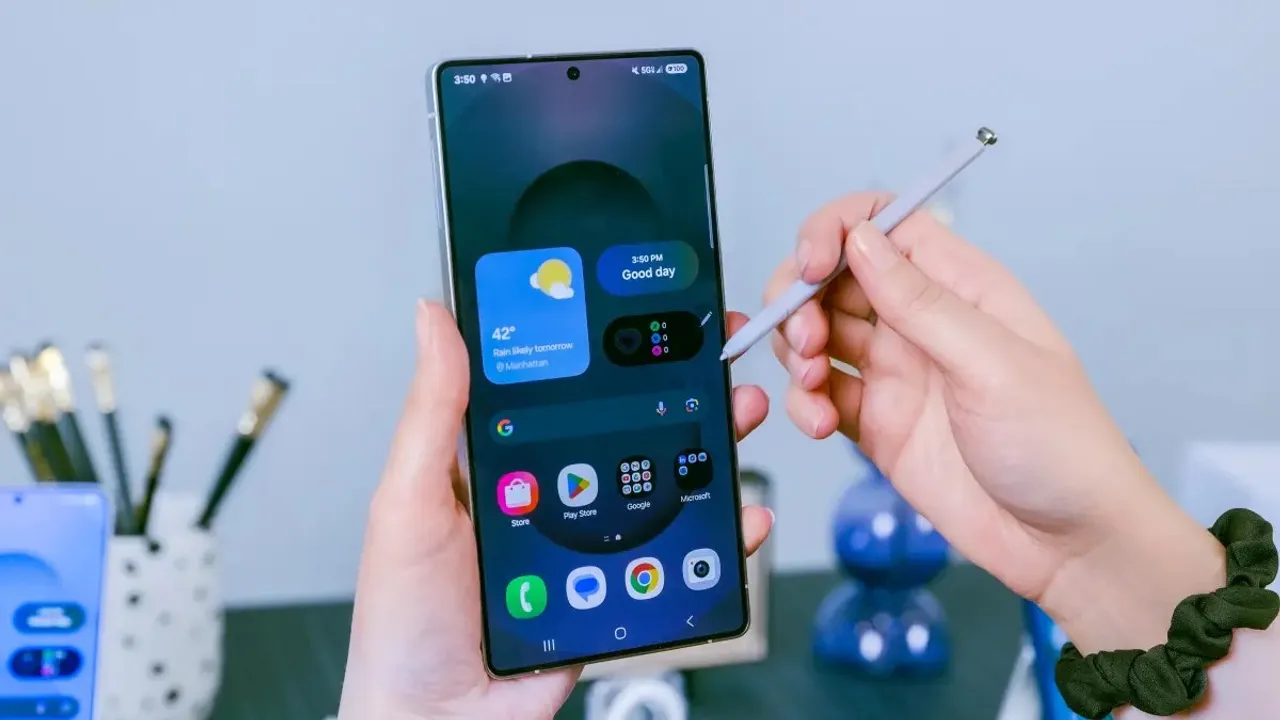
On devices that support S Pen, you can also take a screenshot using screen write.
- Remove the S Pen from its slot and go to the screen you want to capture.
- Tap the Air Command icon, then the screen write option.
- The device captures the page automatically; if you want, you can write on or draw over the image.
Long pages and when it doesn't work
To capture long content in a single image, first take a normal screenshot, then tap the scrolling capture icon, which shows two downward arrows, in the toolbar that appears. Before saving, you can draw on the image with the pen icon or crop it.
Some apps and screens may block screenshots for privacy or security reasons; in that case the button combination won't work either.
With these steps you can easily take a screenshot from your phone. If you have other tips or a guide you'd like to see, don't forget to share them in the comments.
Source
This guide was prepared with AI assistance; it was reviewed and updated by the TechTurco news desk.