Contents
To update your iPhone, follow Settings > General > Software Update. Apple's support page describes the wireless update in 6 steps. Before you start, you need to back up the device, plug the iPhone into power, and connect it to Wi-Fi.
Wireless update from Settings
- Back up your iPhone to iCloud or your computer.
- Plug the device into power and connect it to a Wi-Fi network.
- Open Settings.
- Tap General.
- Tap Software Update. The screen shows the installed iOS version and whether a new update is available.
- If an update is available, tap Download and Install, then follow the on-screen instructions.
If you don't know your passcode, Apple refers you to a separate support page. If a warning appears during the update, check Apple's page on that issue. Some updates aren't offered over the air, and a VPN or proxy connection can also block the device from reaching Apple's update servers.
Install updates automatically
- Open Settings.
- Tap General.
- Tap Software Update.
- Tap Automatic Updates.
- Turn on one of the two options. With automatic install on, the iPhone downloads and installs updates overnight while it is charging and on Wi-Fi, and sends a notification before installing. With automatic download on, the update is downloaded in the background and you install it yourself; to see this option, you need to turn off automatic install.
If an update doesn't appear or won't install
- If the update isn't listed: Apple recommends updating through a computer. On a Mac running macOS Catalina or later, use Finder; on a Mac running macOS Mojave or earlier, or on a Windows PC, use iTunes.
- If the server can't be reached or the update can't be verified: Try again on the same network. If the warning persists, try a different network, a Mac, or iTunes.
- If the download takes a long time: Connect to Wi-Fi and don't download other content during the update. You can keep using the iPhone while the download runs.
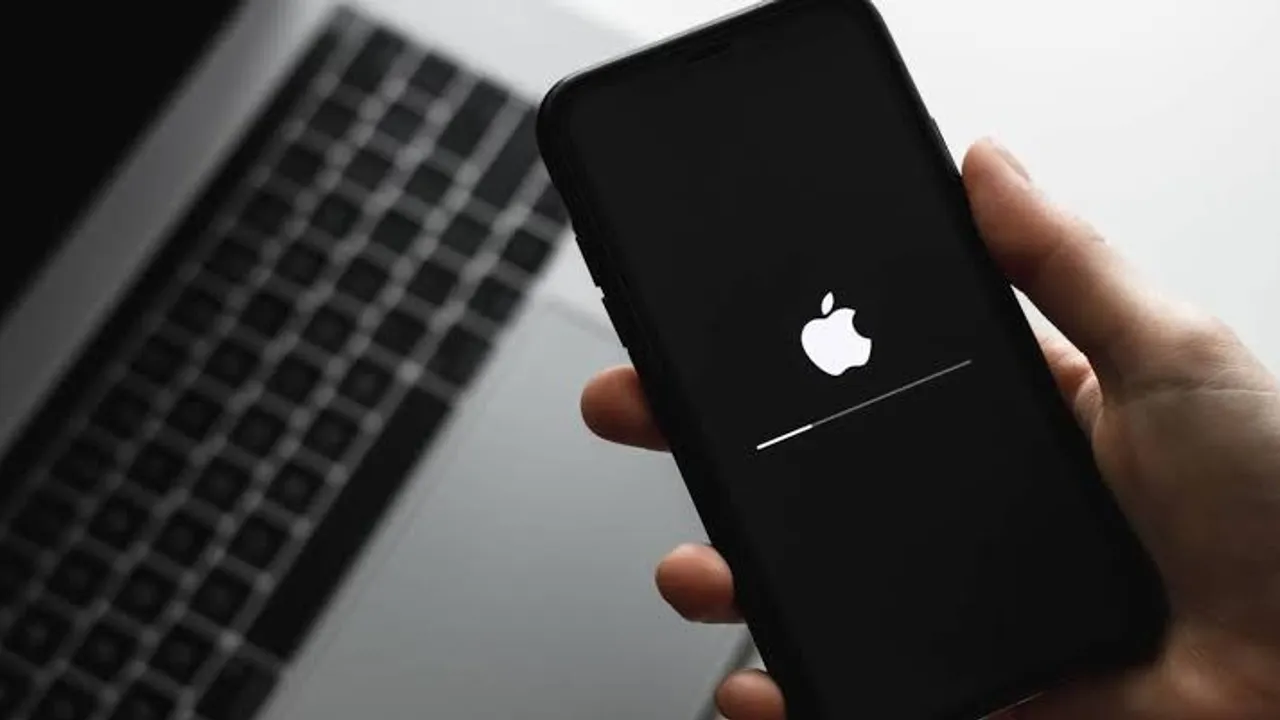
- If the update is interrupted: If the battery runs out, plug the iPhone in and turn it on; the update or restore resumes where it left off.
- If the device doesn't support the new version: Identify your model and check whether it appears on the list of compatible devices Apple publishes for the latest iOS version.
- If there isn't enough storage: Apple recommends deleting content manually, as explained on its computer-update page.
With these steps, you can install the update on your iPhone.
In my view, every iPhone user should install new versions, if only for security.
Don't postpone updates out of fear that the phone will freeze or slow down, because Apple no longer slows older models down with new updates.
Source
This guide was prepared with AI assistance; it was reviewed and updated by the TechTurco news desk.