How to Fix the "iPhone Unavailable" Error on iPhone
The steps to follow for iPhones locked due to accidental pocket touches or forgotten passcodes are explained in two different ways, with and without a computer. Here are the ways to fix the "iPhone Unavailable" error.
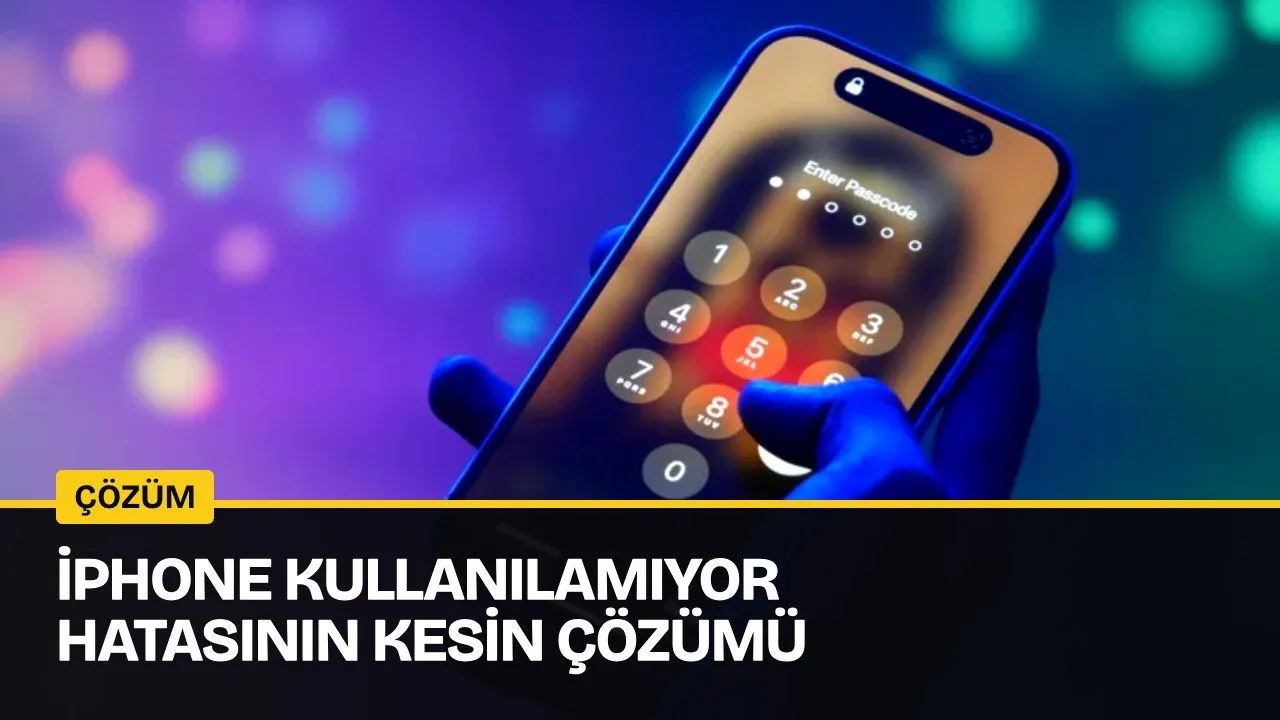
iPhones impose stricter rules than Android devices when it comes to security. Not remembering the passcode on iPhone, Mac, and iPad carries a heavy penalty. So much so that some users experience the shock of their lives when they see the "iPhone Unavailable" message. However, don't worry, there are two different and effective ways to solve this problem.
The issue in question usually occurs when an incorrect passcode is entered too many times. The protection system, designed to prevent unauthorized access, can sometimes be triggered due to accidental screen presses in a pocket or simple forgetfulness.
Fortunately, there are a few ways to regain access to an iPhone. However, depending on the conditions of the lockout, some of these methods require more effort.
How to Fix the iPhone Unavailable Message?
Options to fix the error on the screen vary slightly depending on the iOS version you are using, whether you have recently changed your passcode, and other technological devices you have. Here are the step-by-step methods to solve the problem.
Using the Passcode Reset Option
If you are using iOS 17 or later on your iPhone and have reset your phone's passcode within the last 72 hours, you can solve the issue by reverting to your old passcode. After five incorrect passcode attempts, the "iPhone Unavailable" screen appears. On this screen, select the "Forgot Passcode?" option in the bottom right corner, then tap "Enter Previous Passcode". After entering your old passcode and unlocking the phone, you must set a new passcode immediately.
Resetting an iPhone Without a Computer
Another solution is to reset the iPhone without a computer. For this, the device must be running iOS 15.2 or later, the "Find My" feature must have been previously enabled, an active cellular or Wi-Fi connection must be available, and you must have your Apple Account information on hand.
Apple recommends contacting your carrier before starting these steps if you are using an eSIM on iOS 16 or later; as the carrier can provide a QR code that will allow you to set up the eSIM again.
- Select the "Forgot Passcode?" option on the "iPhone Unavailable" screen.
- Tap the "Reset iPhone" option.
- Enter your Apple Account password to sign out of your Apple Account.
- Select the "Erase iPhone" option. This process erases all your data and settings. If you use an eSIM and are on iOS 17 or later, you will be offered options to keep the eSIM and erase only data, or erase both data and the eSIM.
- The phone will restart. Then follow the on-screen instructions to set up the device again.
Resetting an iPhone Using a Computer
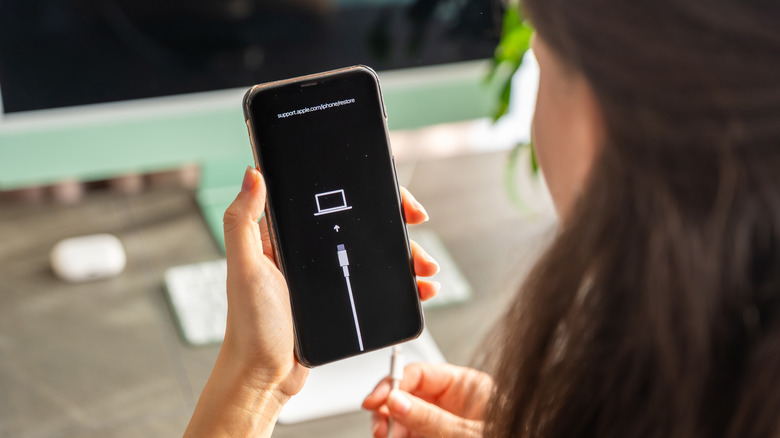
So, how does the process work if you have a computer? If you want to perform a reset using a PC or Mac, you will also need a cable to connect your iPhone to the computer and an internet connection. If you are using a PC, you will also need the Apple Devices app, which you can download from the Microsoft Store. To be able to restore the device after the reset, you need to have an existing iCloud backup.
- Turn off the iPhone by pressing and holding the side button and the volume down button, then using the slider.
- Connect the cable to the computer, then plug in the iPhone while quickly pressing and holding the side button.
- Keep holding the button when the Apple logo appears; do not release it until the computer and cable icon appears. This means your phone is in recovery mode.
The steps to follow from this point vary slightly depending on whether you are using a PC or a Mac:
On PC: Open the Apple Devices app and select your phone from the sidebar. Trust the device if required, then select the "General" tab, choose the "Restore" option, and follow the instructions. Once the iPhone is restored, you can disconnect it and set up the device again.
On Mac: Open Finder and select your phone from the sidebar. If necessary, allow the accessory to connect to your Mac. If a pop-up window appears stating that there is a problem with the phone that requires an update or restore, select "Restore." When the restore is complete, you can disconnect the iPhone and set it up again.
On the other hand, Apple warns that you may need to update your iPhone before completing the restore process. If the phone restarts during the process, you must turn off the device and repeat the steps to enter recovery mode from the beginning.
This article was translated from Turkish. Read the original article in Turkish.