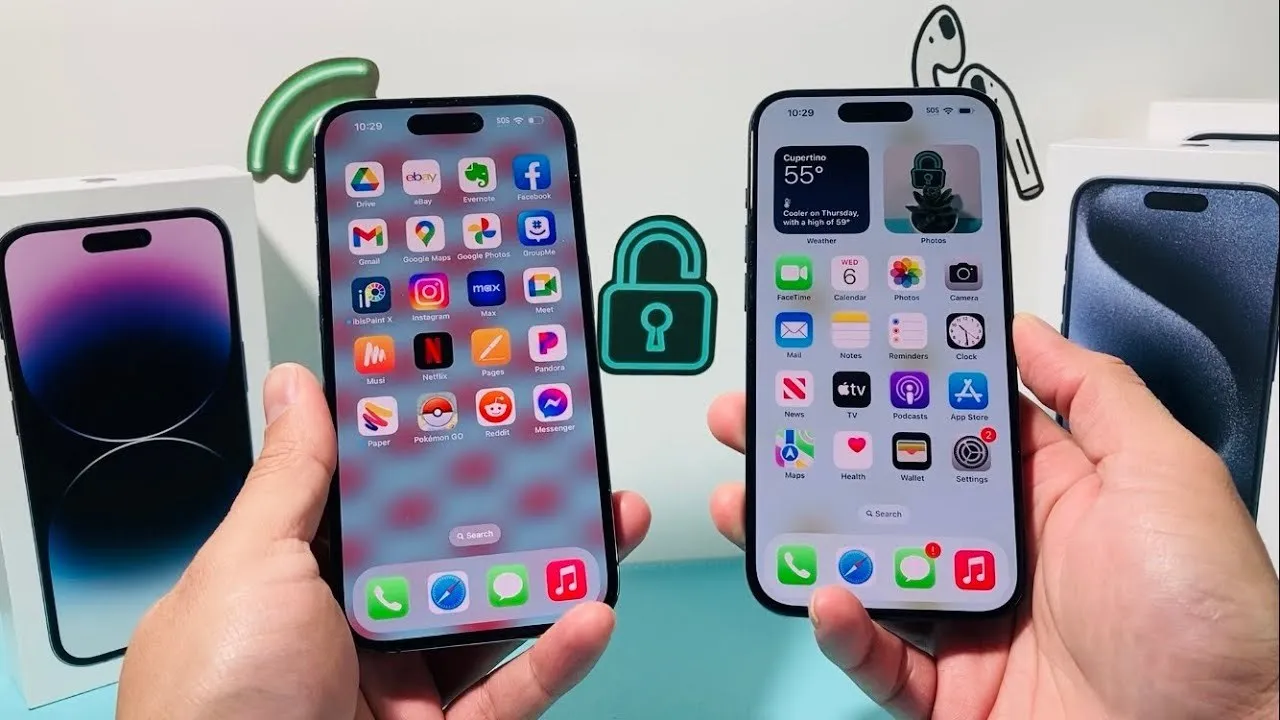
Data transfer happens during the initial setup of the new iPhone. You can place the old iPhone next to the new one and transfer wirelessly with Quick Start, connect with a cable, or restore from an iCloud or computer backup. First, back up the old device and make sure Wi-Fi and Bluetooth are turned on.
Before you begin
- Back up your old iPhone and keep your Apple Account password handy.
- Move your SIM card or eSIM to the new phone. If the new device needs a different SIM, check with your carrier.
- If you have already set up the new iPhone, you will need to erase it before restoring from an iCloud or computer backup.
Wireless transfer with Quick Start
The old device needs iOS 11 or later. Both devices cannot be used during the process, so choose a time when you can spare a few minutes.
- On the old iPhone, make sure Wi-Fi is connected and Bluetooth is on. Unlock the device and go to the Home Screen.
- Turn on the new iPhone, place it next to the old phone, and follow the on-screen instructions.
- Connect the new iPhone to Wi-Fi or a cellular network. If needed, activate cellular service.
- Set up Face ID or Touch ID.
- Choose whether to download data from iCloud or transfer directly from the old device. With iCloud, apps and data download in the background, so you can use the phone right away. With a direct transfer, you wait on both devices until it finishes.
- Keep the devices close together and charging until the transfer is complete.
If the setup prompt disappears on the old device, restart both devices. Quick Start transfers are not possible if the new device is enrolled in Apple School Manager or Apple Business.
Transfer by cable
- The cable depends on the model: when moving between iPhone 15 and later models in the same series, use a USB-C charging cable; when moving from iPhone 14 or earlier to iPhone 15 or later, use a USB-C to Lightning cable.
- Connect the charging ports of the two iPhones with the cable.
- Turn on both devices, follow the on-screen instructions, and connect the new iPhone to Wi-Fi or a cellular network.
- Set up Face ID or Touch ID, and wait for the transfer to finish on both devices.
For transfers from iPhone 14 or earlier to iPhone 14 or earlier, Apple requires a Lightning to USB 3 Camera Adapter and a power adapter of 12 W or higher.
Restore from a backup
- Turn on the new iPhone and go to the Wi-Fi screen.
- Join a Wi-Fi network, go to the Apps and Data screen, and choose to restore from an iCloud backup.
- Sign in to iCloud with your Apple Account.
- When asked for a backup, check the date and size of each one and choose the right one.
- Stay connected until the process finishes, then complete the setup.
If you use a computer backup, select restore from computer on the same screen, connect the new iPhone to the computer where you made the backup, and in the Apple Devices, iTunes, or Finder window, choose Restore Backup. If the backup is encrypted, enter its password. Health and Activity data are not transferred from an unencrypted backup.
Source
This guide was prepared with artificial intelligence assistance; it was reviewed and updated by the TechTurco news desk.