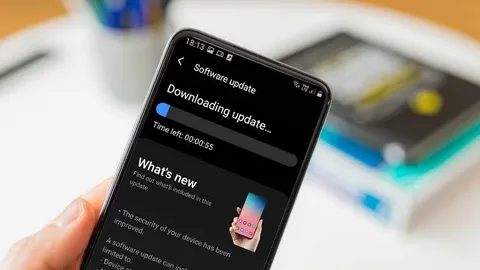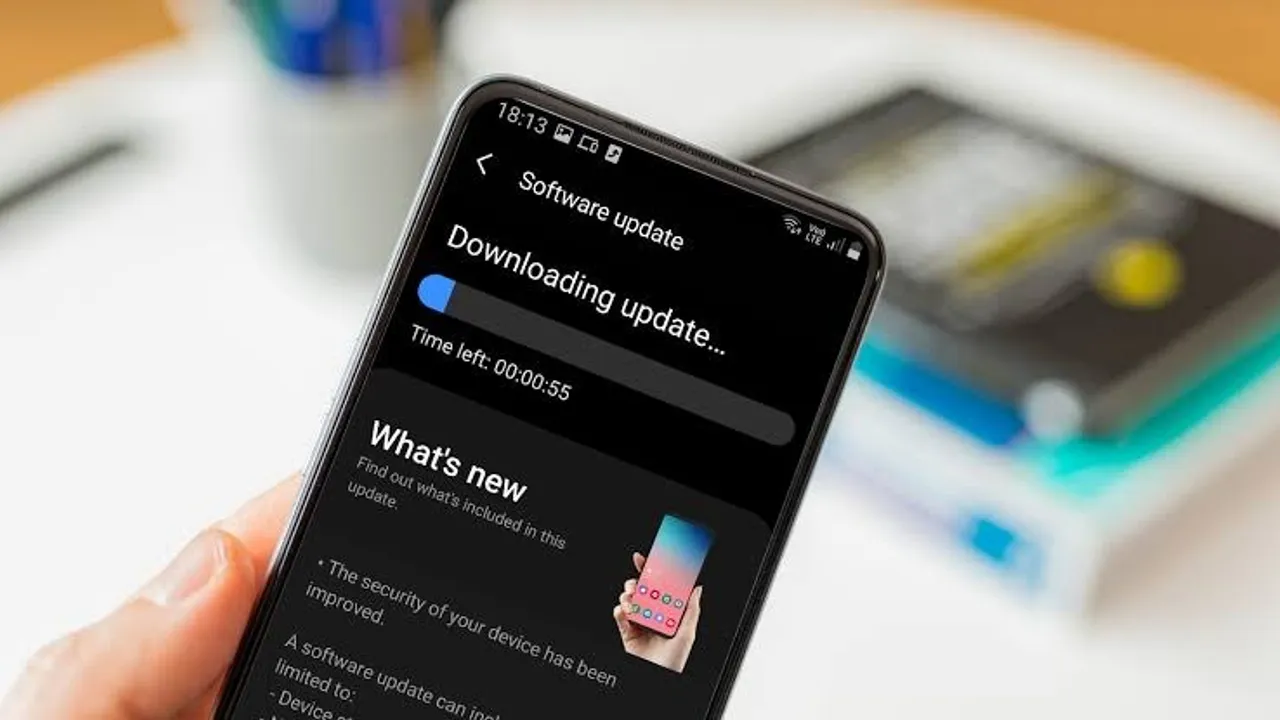
To update an Android phone manually, go to Settings, then System, then Software updates. On Galaxy, the same task is done from the Software Update section inside Settings. According to Google, the phone must be connected to Wi-Fi and have at least 75% battery to update.
Steps on Pixel and most Android phones
- Connect the phone to Wi-Fi and charge it to at least 75%.
- Open the Settings app.
- Tap System, then Software updates. Google notes that on some devices this section may appear as "Software update".
- The update status appears on this screen; follow the on-screen instructions.
- For the Google Play system update, tap Google Play system update on the same screen.
Steps on Samsung Galaxy
- Open Settings.
- Select Software Update.
- Select Check for updates.
- If an update is available, tap the Update tab that opens.
If you want future updates to download automatically, keep Download over Wi-Fi automatically turned on in the menu at the top right. Samsung notes that menus and screens may vary by model and software version.
Advertisement
If no update appears
- Storage may be full. If the phone shows a "not enough storage space" warning, free up space first. Google has a separate help page for this.
- The device may be old. According to Google, older devices may not always be able to run newer Android versions. Samsung also says older models may not support its latest updates.
- Timing depends on the device. Google says update timing depends on the device, the manufacturer and the mobile carrier. If you have a phone other than a Pixel, you need to contact the manufacturer or carrier for information.
- An update may have downloaded but not been applied. On Pixel, a downloaded update installs in the background and takes effect after a restart. Many other phones restart on their own during installation.
Source: Android Help
This guide was prepared with AI assistance; it was reviewed and updated by the TechTurco news desk.