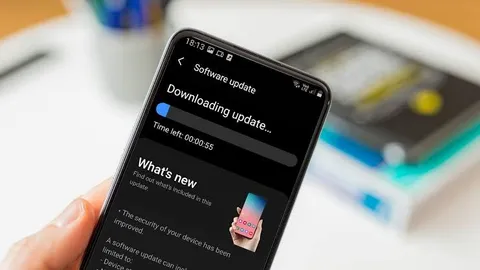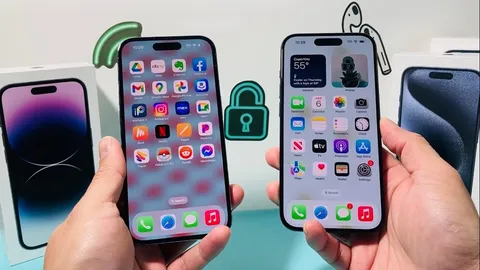
To update WhatsApp, open Google Play Store on Android or the App Store on iPhone, find WhatsApp, and tap Update. The process takes two steps. Before updating, make sure you have a strong internet connection and back up your chat history; WhatsApp recommends this on its official page.
Android
- Find WhatsApp Messenger in Google Play Store.
- Tap Update.
iPhone
- Find WhatsApp in the App Store.
- Tap Update.
WhatsApp's official page does not provide a separate list of steps for iPhone; it only mentions updating through the App Store on its WhatsApp Business page. For the App Store update list, Apple's guide points to the Account button or your profile picture, then the App Updates path.
Why an update may be necessary
WhatsApp asks you to use the latest version when registering with your phone number. Registration may fail on an older version. The page also notes that, due to local regulations, updates may not be available in some regions.

Managing automatic updates (Android)
On Android, automatic updates are turned on by default once you accept the Terms of Service. WhatsApp says that, through Meta Preloads, it downloads updates over Wi-Fi so that no unnecessary mobile data charges are incurred. To turn this off:
- In WhatsApp, go to Settings > App updates.
- Turn off Automatically update WhatsApp.
- Select Turn off.
To get notified while automatic updates are off, enable WhatsApp update available under Notifications on the same screen.
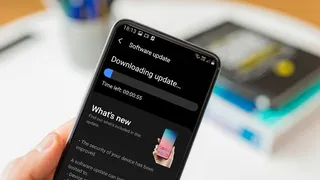
If the update won't download (Android)
- For the Not enough space on device error: go to Settings > Apps > Google Play Store > Storage and cache > Clear cache. Then tap Clear storage > Delete, restart the device, and try reinstalling WhatsApp. WhatsApp recommends at least 1 GB of free space when installing or updating the app.
- For the This item is not available in your country error: if the Google Play help tips don't work, you can download the APK file from WhatsApp's official page and update that way. To open the APK, you need to tap SETTINGS > Allow from this source.
Caution: the Clear storage step only deletes Google Play Store data; do not delete WhatsApp itself. When freeing up space on an iPhone, do not delete WhatsApp or its data either, as WhatsApp warns this could lead to loss of your chat history.
So, what else are you stuck on? Share your problems in the comments.
Source
This guide was prepared with AI assistance; it was reviewed and updated by the TechTurco News Desk.