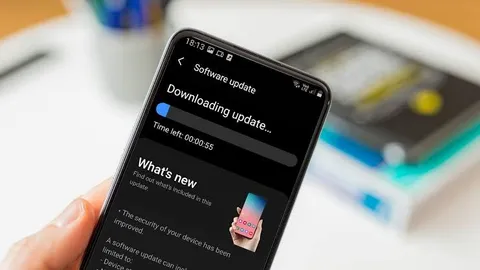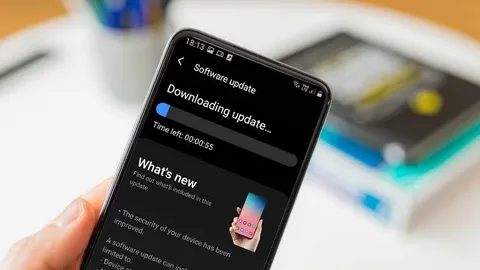
Software updates on a Samsung TV are done from the Menu (Home) button on the remote, through Settings, All Settings and Support. If the TV is connected to the internet, the process takes six steps. Without internet, the update file is downloaded to a computer and copied to an empty USB drive formatted as FAT32.
These methods are based on Samsung Support's Turkish page. Menu names apply to Samsung TVs; on a TV from another brand the names and order may differ.
Updating with an internet connection
- Press the Menu (Home) button on the remote.
- Select the Settings menu.
- Select the All Settings menu.
- Go to the Support section.
- Go to the Software Upgrade or Software Update tab.
- Select the Update Now tab. The update starts; wait until it finishes, as the TV restarts itself.
Updating with a USB drive
This method is used when the TV is not connected to the internet. The drive must be completely empty and formatted as FAT32.
- On a computer, go to the Samsung.com.tr website.
- Type the TV's model code into the search field and search.
- Click Find Support.
- Select Manuals and Downloads.
- Under the MAIN heading, click Download next to Upgrade File (USB type).
- Save the downloaded file to the USB drive and plug the drive into the TV's USB port.
- Press the Menu (Home) button on the remote, then follow Settings, All Settings, Support and Software Update.
- Click Update Now.
- When the prompt "Do you want to search the connected USB device for update files?" appears, click Yes. The update starts.
If the update does not work
- If the TV does not see the file, try a different USB drive.
- If the file does not download to the computer or shows an error, Samsung recommends contacting your internet service provider.
- If several files for different platforms are listed, download the one that matches your TV's platform information.
Turning on automatic updates
If you want updates to install on their own while the TV is connected to the internet, go to the Menu (Home) button on the remote, then Settings, All Settings and Support, and turn on Auto Update in the Software Update tab.
Important: Do not turn off or unplug the TV while an update is in progress.
Source
This guide was prepared with AI assistance; it was checked and updated by the TechTurco News Desk.